
TeamViewer Remote Control
One of the most capable cross-platform remote-control apps you can put on a phone, with genuinely deep security and support tooling — held back for personal users by a commercial-usage detector that can flag legitimate free accounts and throttle them to five-minute sessions.
- IT and field-service technicians who need reliable, firewall-traversing remote access to Windows, macOS, Linux, or Android machines from a phone
- People who provide hands-on tech support to family or colleagues and would benefit from Assist AR's live-video spatial markers
- Commercial users unwilling to buy a license — heuristic detection is designed to catch exactly this usage
- Anyone whose genuinely personal use keeps getting flagged and cut to five-minute sessions, or who needs precise desktop-grade input from a phone alone


Overview
The verdict up front
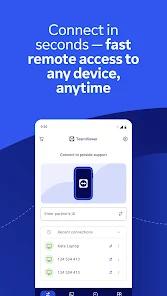
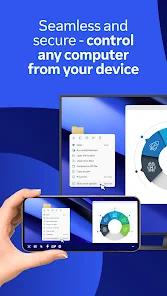
TeamViewer Remote Control is one of the few apps that can genuinely turn a phone into a control seat for someone else’s computer — and after 100M+ installs it has the maturity to prove it. From an Android device you can take over a Windows, macOS, Linux, or another Android machine, push and pull files both directions, and do it across corporate firewalls without touching a single router setting. That’s a real feat, and the app largely delivers on it. The catch dominates its own reviews: the automated system that watches for unpaid commercial use sometimes flags ordinary personal accounts, and when it does, your sessions get cut to five minutes and you’re pointed at a reset-request form. For the paying technician, this is an excellent tool. For the free user who just wants to fix a parent’s laptop, it’s a coin toss whether the software trusts you.
What TeamViewer actually gets right
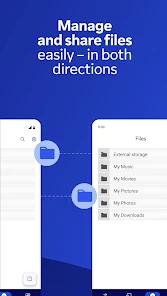
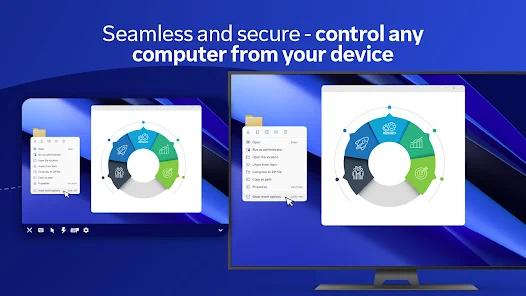
The core strength is breadth. TeamViewer’s mobile client controls Windows, macOS, and Linux desktops, plus other Android devices and Chromebooks, and file transfer runs both directions — pull a document off the remote machine or push one to it without a separate tool. Very few remote-control apps cover that many host platforms from a phone. If your day involves jumping between a Windows server, a Mac, and a colleague’s Android handset, this is one app instead of three.
Underneath that is the part most people never think about until it fails: the networking. TeamViewer uses a brokered cloud-router architecture. Instead of asking you to open inbound ports or configure NAT, both ends make outbound TCP and UDP connections to TeamViewer’s cloud routers, which relay the session. In plain terms, it works from behind the kind of corporate firewall that blocks almost everything else, without the network-admin homework self-hosted tools usually demand. The description also calls out bandwidth-adaptive streaming — the host screen is captured, compressed through proprietary codecs, and scaled in resolution and framerate when the connection is poor. That’s the difference between a usable session on hotel Wi-Fi and a slideshow.
The security story is substantial, and worth stating precisely. TeamViewer describes its sessions as protected by end-to-end 256-bit AES encryption with a 1024/2048-bit RSA public-key exchange negotiated at connection time. Those are the vendor’s stated claims rather than something we tested, but they’re the kind of specifics an enterprise buyer expects, and they signal a product built for environments where session confidentiality is non-negotiable.
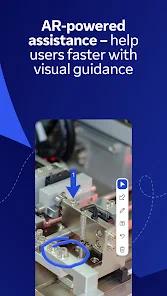
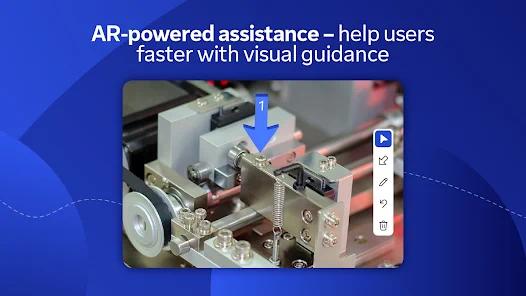
The feature that most sets it apart is Assist AR. The technician’s rear camera streams live video of a physical object — a router, a machine, a wiring panel — and lets them drop persistent 3D spatial markers directly onto it, synchronized with VoIP audio. Point at the exact port to unplug, talk the person through it, and the markers stay anchored in space. For guided physical troubleshooting, that’s meaningfully better than describing steps over a phone call, and most remote-control apps don’t attempt it at all.
The licensing reality, stated plainly
Here’s the part that dominates the app’s reviews, and the reason we can’t call this an unqualified recommendation. TeamViewer is free for strictly personal, non-commercial use. To enforce that, it runs automated heuristics that try to detect unpaid commercial activity — and by the description’s own admission, those heuristics often flag personal accounts during routine connections. When that happens, the consequences are abrupt: sessions terminate, and the account is restricted to five-minute connection limits. To get back to normal, you submit a reset request form and wait.
We want to be fair about the intent. A detector like this exists because commercial users genuinely should be buying a license, and the free tier isn’t meant to subsidize businesses — a legitimate line to draw. The problem is the false positives. The recurring theme across user feedback is heavy frustration from people who insist their use really is personal, yet find themselves throttled and filling out reset forms to prove it. A five-minute limit is often enough to break the exact task you opened the app to finish, and the reset process lands hardest on the users least equipped to navigate it.
That connects to the second real gap: there is no direct support channel for free or non-commercial users. So the people most likely to be flagged have the fewest ways to get it resolved quickly, and the reviews reflect that bind directly. It’s a coherent business model, but for a free personal user it means the moment something goes wrong is the moment you’re most on your own.
Where the mobile experience gets fiddly
Even setting licensing aside, controlling a desktop from a touchscreen has hard limits, and TeamViewer runs into them. The client translates multi-touch gestures — pinch-to-zoom, two-finger scroll, drag-and-drop — into host pointer and mouse commands, and for general navigation it works. But precise drag-and-drop is highly sensitive to latency, and complex multi-key input is genuinely awkward without a physical keyboard. The recurring user sentiment is blunt: for anything requiring precision, an external mouse is strongly preferable. If your plan is detailed desktop work from a phone with no peripherals, temper your expectations — the app is at its best as a control surface with a Bluetooth mouse and keyboard attached.
There’s also a persistent papercut around authentication. The app often can’t persist the controlling device’s hardware or MAC identity, which means repeated manual sign-ins to preserve connection profiles. Users running otherwise stable field-service sessions still report the frequent re-authentication as a recurring annoyance — the sessions hold up, but you’re asked to prove who you are more often than you’d like. It’s friction that doesn’t break the tool but wears on you across a workday.
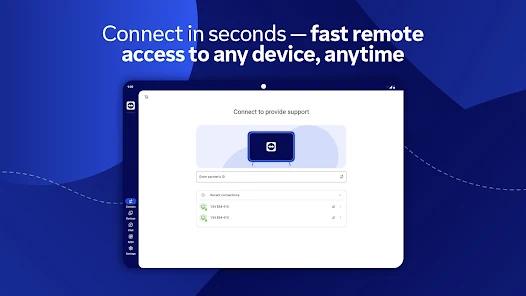
Remember too that the app is only half the equation: the remote computer needs desktop TeamViewer, Host, or QuickSupport installed, and you connect using a unique ID and password. Controlling another Android device additionally requires QuickSupport plus the relevant add-ons. Camera permission drives QR-code quick-connect; microphone permission powers real-time audio. None of that is unusual for the category, but it’s setup worth knowing before you assume a bare phone can reach a bare PC.
Recency, scale, and how it compares
On recency, we’ll be straight: no Play Store update date is available, so we won’t invent one. What we can say is that the numbers describe a mature, heavily used product — 100M+ installs and a 4.4 rating across roughly 954,000 ratings. A rating that high on nearly a million votes is a strong signal; the frustrations in the reviews are real, but they clearly haven’t sunk the overall impression.
On alternatives, the app operates in a competitive market where free, open-source, and platform-native remote-access options keep expanding, and those can appeal precisely to the users who get caught by commercial flagging — the description notes the support gap and licensing friction have driven some people toward self-hosted or open-source solutions. The catch is that you’d trade away exactly what TeamViewer does best: zero-configuration firewall traversal, the breadth of supported host platforms, and polished extras like Assist AR. Rolling your own remote access usually means doing the network-admin work TeamViewer hides for you, and giving up features without easy open-source equivalents. Which side wins depends on whether you value convenience over cost and control.
Who it’s not for
Be honest with yourself before installing. If your use is commercial, this app is not a free ride — the detector is built to find you, and the right move is to license it rather than fight the flags. If your “personal” use has already been repeatedly flagged, the five-minute limits and reset forms may make it more trouble than it’s worth, and a self-hosted option might serve you better. If you need precise, desktop-grade input from a phone with no external mouse or keyboard, the touchscreen mechanics will frustrate you. And if you’re a free-tier user who expects responsive, direct support when something breaks, that channel doesn’t exist.
Our take
TeamViewer Remote Control earns a 4.2 from us, and the split behind that number is clean. The engineering is genuinely strong: cross-platform reach few rivals match, firewall traversal that just works, bandwidth-adaptive streaming, bidirectional file transfer, a serious stated security design, and in Assist AR a standout tool for guided physical support. For a paying technician it’s an easy recommendation. We’re holding back the rest because the personal-use experience is where the app is most inconsistent — the commercial-usage detector can flag legitimate free users and throttle them to five-minute sessions, there’s no direct support to sort it out, and the mobile control mechanics and repeated re-authentication add friction on top. None of that makes it a weak app; it makes it a situational one. If you’re licensing it for professional remote work, buy with confidence. If you’re a free personal user, go in knowing the software may occasionally decide it doesn’t trust you — and that resolving that is more work than it should be.
How We Evaluate
We did not hands-on test this app. This review is built from TeamViewer's own Play Store listing and description, its stated feature set (cross-platform remote control, brokered cloud-router networking, Assist AR, bidirectional file transfer), the developer FAQ on licensing and connection requirements, the current store rating and install figures, recurring themes in published user reviews, and TeamViewer's long-established public reputation as a mainstream remote-desktop and remote-support tool. Security specifics such as end-to-end 256-bit AES encryption and RSA key exchange are the vendor's stated technical design; we describe them as claims rather than something we independently verified. Where we cite user sentiment, we're reflecting documented recurring feedback in the store material rather than personal sessions.
Pros & Cons
Comprehensive Cross-Platform Support: Enables seamless, bidirectional control between Android mobile devices, Chromebooks, and host systems running Windows, macOS, or Linux.
Highly Secure Tunneling: Implements end-to-end 256-bit AES encryption alongside secure RSA key exchange protocols to safeguard remote connections against unauthorized access.
Augmented Reality Support Tools: Features Assist AR, which allows technicians to project persistent 3D markers on live video feeds to guide physical troubleshooting.
Bidirectional File Management: Simplifies document, directory, and media transfers between local mobile storage and remote targets in both directions.
Automatic Firewall Traversal: Circumvents complex NAT systems, firewalls, and proxy servers without requiring manual router port forwarding.
Bandwidth-Adaptive Streaming: Dynamically scales video resolution and framerate to maintain stable remote control performance over low-bandwidth connections.
- ✕
Excessive Heuristic Commercial Flagging: The automated tracking system frequently flags legitimate personal users, limiting connections to five-minute intervals.
- ✕
Restricted Support Channels: Direct technical support and developer assistance are completely inaccessible to non-commercial, free-tier users.
- ✕
Inflexible Mobile Control Mechanics: Precise drag-and-drop operations and complex multi-key entries remain difficult to execute without external hardware peripherals.
- ✕
Repetitive Authentication Prompts: Security policies often prevent the application from saving the controller's hardware or MAC identity, requiring frequent manual sign-ins.
Download
 Get it on Google Play
  Get it on App Store
 FAQs
Is TeamViewer Remote Control free for personal use?
Yes, the application is offered without license fees for strictly personal, non-commercial use. If the automated monitoring systems flag an account for suspected commercial activity, the user must submit a reset request form to restore access.
What software must be installed on the remote computer to allow connection?
The remote computer must run the desktop version of TeamViewer, TeamViewer Host, or the QuickSupport module. The mobile operator can then connect using the unique ID and password displayed on the remote device.
How does the application bypass corporate firewalls?
The software establishes outbound TCP and UDP connections to TeamViewer's centralized cloud routers, bypassing the need to open inbound ports on the remote network's firewall.
Why does the application request access to the device camera and microphone?
The camera permission is utilized to scan QR codes for quick connection setups. The microphone permission is necessary to transmit real-time audio during remote support sessions, voice chats, or Assist AR interactions.
Can the mobile app be used to control another Android device?
Yes, remote control of mobile target devices is supported, provided the remote Android device has installed the TeamViewer QuickSupport application along with any required system-level add-ons.
Hot Reviews
The remote connection protocol remains stable during offsite support operations, though security configurations require frequent authentication steps to preserve connection profiles.
Long-time users report substantial frustration with false-positive commercial use detections, which restrict legitimate personal sessions to five-minute limits and require submission of manual reset forms.
Touchscreen pointer controls are generally functional, but complex drag-and-drop tasks remain highly sensitive to network fluctuations and latency variations, making external physical mice preferable.
The lack of direct support channels for free-tier users makes resolving configuration conflicts or automated billing blocks highly difficult.